

Most developers don’t think about the Claude code context window until something goes wrong. Claude starts giving answers that feel slightly off. It repeats suggestions it has already made. It seems to “forget” a file you referenced ten minutes ago. That’s the context window at work, or more precisely, at its limit. Understanding how it functions isn’t optional if you’re doing serious work with Claude Code. It’s the difference between an AI that genuinely understands your codebase and one that’s guessing based on a partial picture.
The context window is Claude’s working memory. Everything it can currently “see” your conversation history, the files it’s read, the terminal output it processed, and the instructions you gave all of that lives inside this window. When it fills up, something has to give. Knowing what fills it, how Claude handles the limit, and how to keep it from becoming a problem will make your sessions noticeably more productive.
[IMAGE: Diagram illustrating the claude code context window showing how tokens fill up with conversation history, file contents, and tool outputs]
What the Claude Code Context Window Actually Means
A token is roughly three to four characters of text, not a word, not a line, but a small chunk. When Claude Code reads a file, processes terminal output, or responds to you, every piece of that exchange costs tokens. The context window is the maximum total number of tokens Claude can hold in its active working memory at any given moment.
Think of it like a whiteboard. Everything written on the whiteboard is visible and usable. Once the whiteboard is full, adding new information means erasing something old. The question is what gets erased, and that’s where Claude’s automatic context management comes in.
This issue intensifies when coding with Claude Code, as token usage quickly escalates. Because of this, understanding the system’s limits and options is essential before moving on to specific plan details.
How Large the Claude Code Context Window Is
Claude’s context window on paid plans is 200,000 tokens. That translates to roughly 500 pages of text, which sounds enormous until you realize how fast a real coding session burns through it.
A single moderately complex Python file might run 500–2,000 tokens. Read ten of those files, add a few rounds of conversation, factor in terminal output from a test run, and you’ve consumed a meaningful fraction of your available context before you’ve done much real work.
Enterprise plan users can access a 500,000 token context window on specific models, which is 2.5 times larger than the standard 200,000 token window offered on paid non-enterprise plans.With the larger window on Enterprise, you can keep a lot more of your codebase in scope, which makes longer or more involved work less likely to run into limits.
On regular paid plans, it’s a bit more constrained. They work well for smaller tasks or more focused work, where you don’t need as much context loaded in at once.
Context Window by Plan
| Plan | Context Window | Approximate Page Equivalent |
|---|---|---|
| Claude Pro | 200,000 tokens | ~500 pages |
| Claude Max | 200,000 tokens | ~500 pages |
| Claude Teams | 200,000 tokens | ~500 pages |
| Claude Enterprise | 500,000 tokens | ~1,250 pages |
| Free Plan | Smaller, varies | Significantly less |
The practical difference between the 200K and 500K token context windows goes beyond just token count. With the 200K plan, you’re able to work through a focused module or feature with ease. The 500K Enterprise plan, by contrast, lets you manage much larger projects, such as keeping an entire microservices architecture in scope for more complex, multi-part work. Choose the plan that matches the size and scope of your projects to avoid running into context limitations.
[IMAGE: Claude Code context window usage visualization showing token consumption by conversation history, code files, and tool outputs across paid plans]
How Claude Code Manages Context Automatically
Anthropic added automatic context management to its paid plans, and it turns out to be genuinely useful once you see how it works. When your session approaches the context window limit, Claude automatically summarizes earlier parts of the conversation to make room for new content. The technical term for this is compaction.
The key point: this doesn’t erase your conversation history. Claude preserves your full chat history and can still reference it. Earlier parts get summarized into a compressed form, not kept exactly as first written. Sometimes Claude describes this as “organizing its thoughts,” which is automatic compaction happening in real time.
There’s one important condition: code execution must be enabled for automatic context management to work. If code execution is turned off in your settings, you won’t get automatic compaction, and you’ll hit hard context limits instead. Check this setting if you’re hitting walls more often than expected.
What Happens When the Claude Code Context Window Fills Without Automatic Management
Without compaction, once you hit the limit, Claude just stops taking new input. At that point, you either clear the conversation or start a new session, which means losing the flow.
That’s exactly the situation you want to avoid. It’s also why it’s worth checking your plan limits before you start anything long, so you don’t run into that halfway through.
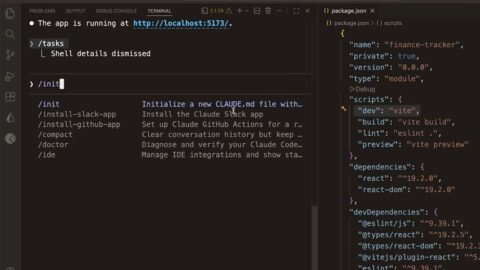
In Claude Code specifically, you can also trigger manual compaction using the /compact command inside your session. This explicitly summarizes context at a point you choose, giving you control over when it happens rather than waiting for automatic management to kick in. I use this before starting a major new task within the same session; it effectively clears the whiteboard of earlier work and gives me a clean slate for the next problem.
Why Context Window Size Matters More in Code Than Regular Chat
Regular chat use is forgiving. A conversation about a topic rarely exceeds a few thousand tokens per exchange. Code is different.
Claude Code reads files. Tool outputs can be verbose. A single run of a test suite with failures can dump thousands of lines of output into the context. Stack traces are long. Configuration files are dense. When Claude Code searches your codebase with a grep or glob operation, the results add up fast.
I’ve had sessions where reading four large files, running a build, and processing the output consumed over 50,000 tokens before I typed a single question. At that rate, a 200K context window gives you roughly three or four deep iterations before compaction starts kicking in.
The practical implication: Be intentional about what you ask Claude Code to read. Don’t load every file in your project if you only need three of them. Scope your requests to the specific area you’re working in. This isn’t a workaround; it’s just good practice for getting clean, focused responses.
How to Make the Most of Your Context Window
There are a few concrete habits that noticeably extend how far your context window goes in a given session.
Use Projects with RAG for large repositories. Anthropic’s Projects feature uses retrieval-augmented generation, which loads only the most relevant content into the context window on demand rather than reading everything upfront. For large codebases, this is a significant efficiency gain. Claude pulls in what it needs when it needs it instead of front-loading its entire context budget. [INTERNAL LINK: Claude Projects setup and RAG explained]
Keep instructions concise. System-level instructions and project context consume tokens every session. If your CLAUDE.md or project instructions are longer than they need to be, you’re spending context budget on overhead before you’ve done any actual work. Trim them to what genuinely changes Claude’s behavior. General coding guidelines that apply universally don’t need to live in per-project instructions.
Manage tools and connectors actively. Each active tool and connector in your session consumes tokens as part of the context. MCP servers, in particular, can be token-intensive because their tool definitions load into context. Only enable the tools you’re actively using. Disabling connectors you don’t need for a specific task is one of the easiest ways to reclaim available context.
Scope your file reads. When asking Claude Code to read code, specify the file or function you need rather than pointing at directories. Reading one well-chosen file costs far less context than a broad sweep that returns material you don’t actually use.
Start fresh sessions for new tasks. I don’t keep everything in one long Claude Code session. Once I finish a task and switch to something unrelated, I usually start fresh. The old context isn’t really helping at that point it’s just taking up space. Starting clean tends to give better results anyway.
Making the Context Window Work For You
The Claude code context window isn’t a wall you run into; it’s a resource you manage. With 200,000 tokens on paid plans, you already have a decent amount of room to work with. If you’re on Enterprise with 500,000, it’s even more comfortable you can handle pretty large systems without running into limits all the time.
But in practice, the difference isn’t just about the plan. Some people hit limits constantly, while others barely notice them. It usually comes down to how you use the space, not just how much you have.
If you want to get the most out of it, a few habits make a difference. Turn on code execution so compaction happens automatically. When you switch to a new task but stay in the same session, use /compact instead of carrying everything forward. It also helps to be selective about what you load in don’t pull in more files than you actually need. Keep your project instructions tight, and if you’re working with a larger codebase, using Projects with RAG can make things a lot smoother. None of this is complicated, but putting it together goes a long way in how well Claude Code actually performs.
Adopt these habits now. Don’t let context management slow you down—instead, use it as a lever to help Claude Code excel at what matters most: writing, fixing, and understanding your code efficiently.
Frequently Asked Questions
Does the claude code context window reset between sessions?
Yes, each new session starts with an empty context window. Nothing from your previous session carries over into a new one unless you explicitly resume it using claude– continue or claude– resume. Starting a new session is one of the easiest ways to reclaim your full context budget when you’re switching to an unrelated task. If you’re working on something that genuinely needs history from a previous session, the resume flags let you reconnect to that conversation. For most focused coding tasks, though, a fresh session with a clear scope is better than a long-running session that’s accumulated a lot of unrelated context from earlier work.
What is the difference between context window and usage limits in Claude Code?
These get mixed up a lot, but they’re not the same thing. The context window is about how much Claude can handle at once in a session. Usage limits are more about how much you can use overall, spread across time and across different sessions.. You can hit a usage limit without ever filling a single context window, and you can fill your context window without hitting any usage limits. If Claude seems to stop responding or starts saying it can’t help, check both: the context window (which the /compact command can help with) and your plan’s usage limits (which may require waiting or upgrading your plan).
[…] Internet connection: Required at all times – Claude Code talks to Anthropic’s servers. This dependency on cloud processing is tied to how Claude handles large projects using its context window, something explained in detail in this Claude Code context window guide. […]