

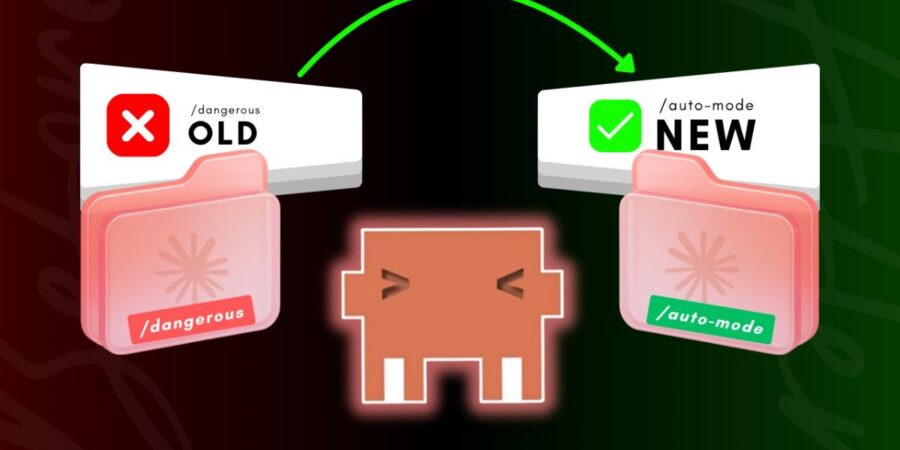
If you’ve ever kicked off a big task in Claude Code and then spent the next hour clicking “Approve” on every single file write and bash command, you already understand the problem this feature solves. Claude Code auto mode is Anthropic’s answer to one of the most common frustrations developers have with AI coding assistants: the constant interruptions.
Announced on March 24, 2026, auto mode is now available as a research preview for Claude Team plan users, with Enterprise and API access rolling out shortly after. It’s a genuinely practical addition, and it changes how most developers will actually use Claude Code day to day.
Codex vs Claude Code comparison
What Is Claude Code Auto Mode and Why Does It Matter
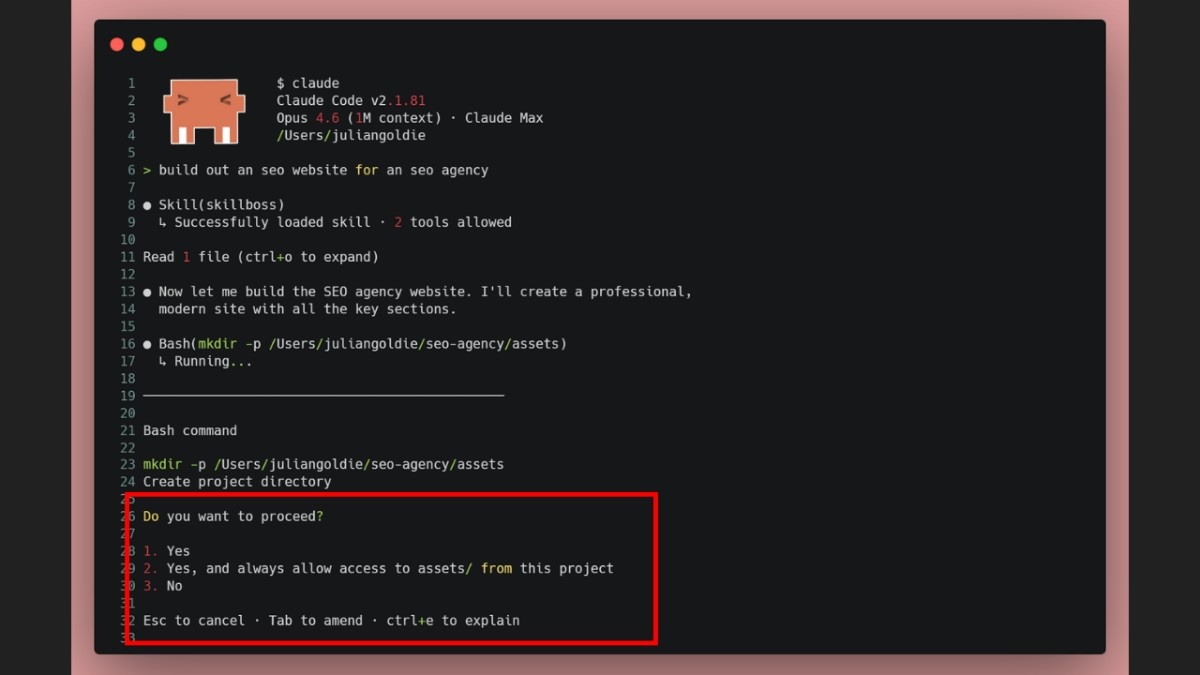
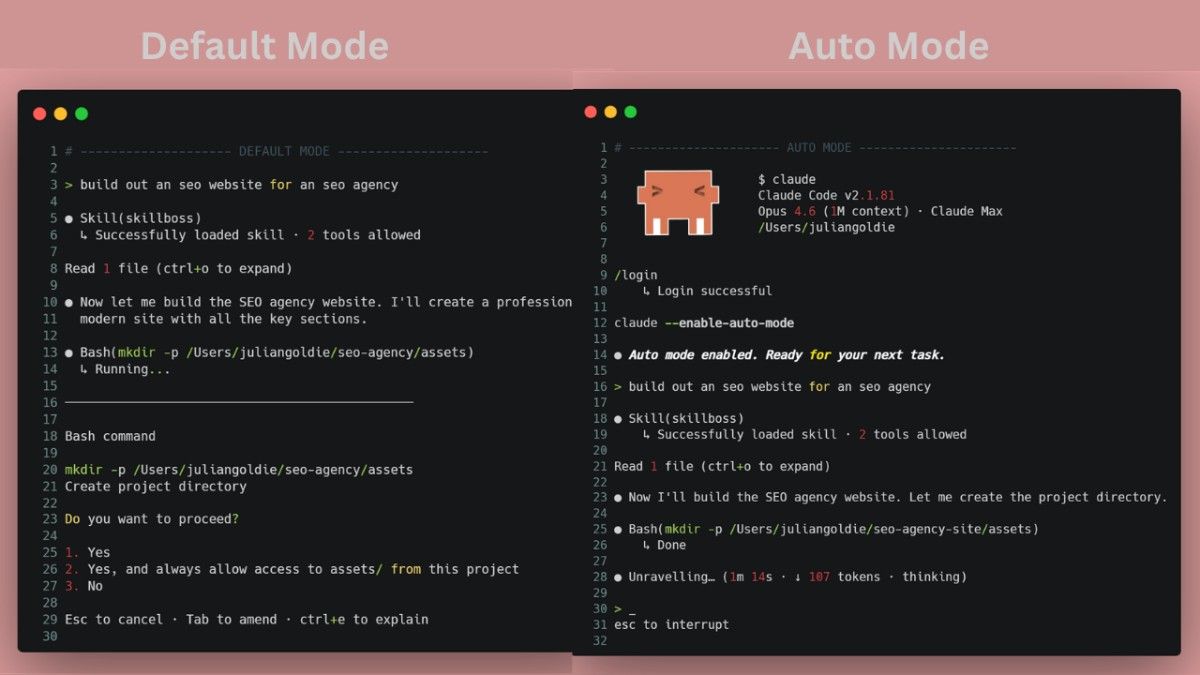
By default, Claude Code asks for your approval before every action on every file it writes, and before every shell command it runs. That’s safe. Nobody’s arguing otherwise. But it also makes long, multi-step tasks borderline unusable if you need to step away from your desk.
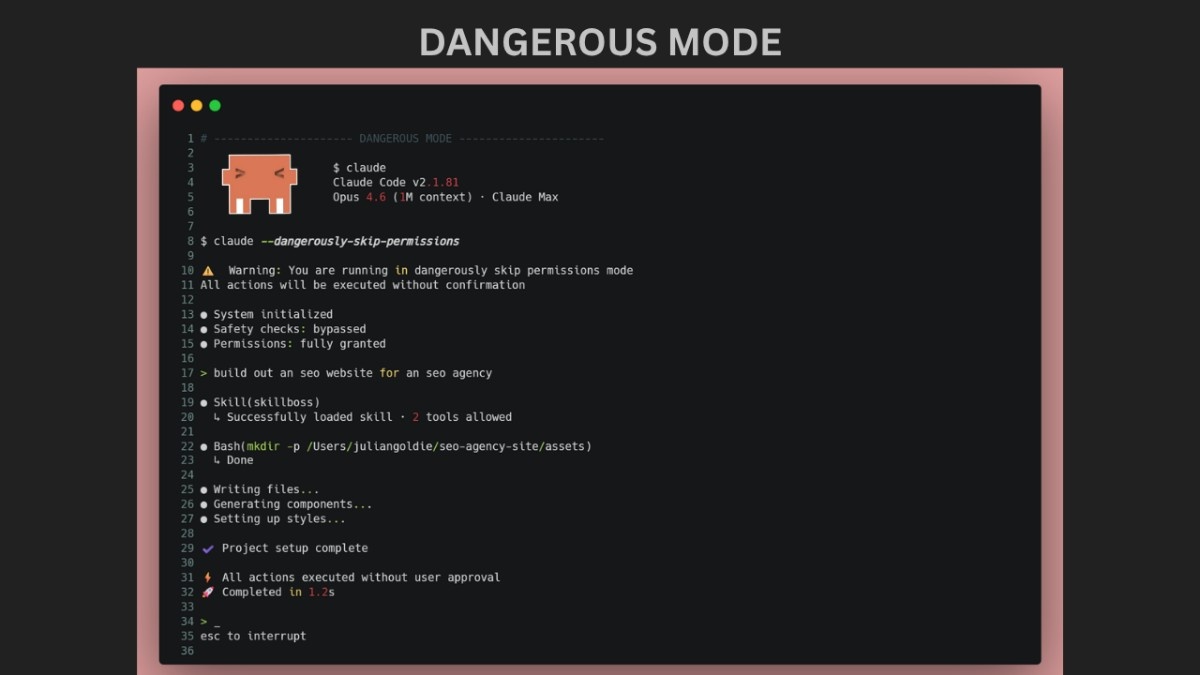
The old workaround was a flag called “dangerously-skip-permissions”. The name alone should give you pause. It bypasses all permission checks entirely, which is fine if you’re running Claude inside a completely isolated sandbox. Still, it’s genuinely risky in any environment that touches real files or real systems.
Auto mode sits in the middle. It lets Claude move forward without stopping you at every step, but it’s not completely hands-off either. Before anything actually runs, there’s a check in place that looks at each action and flags anything that might be risky. And yeah, that small detail makes a bigger difference than you’d expect.
It’s not “trust everything,” it’s “evaluate everything, flag what’s risky.”
How the Auto Mode Classifier Actually Works
The Permission Review Process in Claude Code Auto Mode
Before any tool call executes in auto mode, a built-in classifier inspects it. The classifier specifically looks for actions that could cause real damage: mass file deletion, sensitive data exfiltration, or malicious code execution.
If the classifier marks an action as safe, Claude proceeds automatically. If it flags the action as risky, it blocks it and redirects Claude to find a different approach. This is a clever design; instead of just stopping and asking you, it tells Claude to try something else first.
If Claude keeps hitting blocks and can’t make progress, then it surfaces a permission prompt to you. So you still retain final control, but only when it genuinely matters.
What Gets Blocked by Default
The classifier is set up to catch several categories of high-risk actions:
- Deleting large numbers of files or entire directories at once
- Trying to access or send sensitive data outside your environment
- Execution of code that looks malicious or unauthorized
- Actions that could irreversibly alter your system state
It’s worth being clear: this isn’t a guarantee. Anthropic itself says the classifier may occasionally allow risky actions, particularly when your intent is ambiguous, or Claude lacks sufficient context about your specific environment. It may also sometimes block perfectly harmless actions. This is a research preview, after all.
Claude Code Auto Mode vs. Other Permission Modes
Understanding where auto mode fits compared to the other options makes it much easier to decide when to use it.
| Permission Mode | Approval Required | Risk Level | Best For |
|---|---|---|---|
| Default Mode | Every action | Low | Sensitive or production environments |
| Auto Mode | Only flagged actions | Medium | Long tasks, dev/staging environments |
| –dangerously-skip-permissions | None | High | Fully isolated sandboxes only |
I think that default mode is for when you’re working on something that matters, and you want to see every move. Auto mode is for when you have a clearly scoped task, you trust your environment, and you want Claude to get it done. The risky flag is meant for CI/CD pipelines and disposable containers, where nothing can break out.
How to Enable and Use Claude Code Auto Mode
Getting started is straightforward, and the setup process differs slightly depending on how you’re running Claude Code.
Enabling Auto Mode from the Command Line
If you use Claude Code from the terminal, run this command to enable auto mode:
claude --enable-auto-modeOnce it’s enabled, you can switch to it during a session by pressing Shift+Tab to cycle through permission modes. That’s it. No config file edits, no environment variables.
Enabling Auto Mode in VS Code and Desktop
For the VS Code extension or the Claude desktop app, the process has an extra step. You’ll first need to go into Settings → Claude Code and toggle auto mode on. After that, you can select it from the permission mode drop-down at the start of any session.
One note for desktop users: auto mode is turned off by default in the Claude desktop app specifically. This is intentional; the desktop environment isn’t isolated the way a terminal session might be, so Anthropic made the cautious call to require an explicit opt-in there.
Admin Controls for Teams
If you’re managing Claude Code across a team or organization, admins have a dedicated control. You can disable auto mode entirely for all CLI and VS Code users by setting "disableAutoMode": "disable" in your managed settings. For Enterprise users, the toggle lives under Organization Settings → Claude Code.
What Claude Code Auto Mode Works Best For
Auto mode isn’t the right tool for every situation. But for the right tasks, it genuinely removes a lot of friction.
Auto mode works best when the task is long and clearly defined. Think of things like refactoring a module across multiple files, running tests and fixing whatever breaks, or setting up a project from a template. In those cases, you already know roughly what needs to happen; you just don’t want to sit there approving every step.
It’s not tied to just one model either. Auto mode works with both Claude Sonnet 4.6 and Opus 4.6, so you’ve got some flexibility there. There is a bit of a trade-off, though you might notice slightly higher token usage, a bit more cost, or small delays in tool calls. Nothing major, but it’s there.
In practice, it still feels worth it. Not having to click through approvals over and over during a longer task makes a bigger difference than you’d expect.
That said, I usually switch back to default mode when anything touches production systems, credentials, or live databases. That’s not something I like leaving fully automated. No system gets it right every time, and if the stakes are high, it’s better to stay in the loop.
Staying Safe While Using Auto Mode
Auto mode reduces risk compared to skipping permissions entirely, but Anthropic is clear that it doesn’t eliminate risk. That’s not a caveat buried in the fine print; it’s front and center in how they describe the feature.
The practical recommendation is to use auto mode in isolated environments. A Docker container, a virtual machine, and a development branch with no access to production are the right contexts. Running it on your main workstation with access to your personal files and credentials is a different story.
The classifier’s still a work in progress. Since it’s part of a research preview, it’s expected to improve over time. Anthropic is actively tuning trying to cut down on cases where it blocks safe actions, and also the ones where something risky slips through.
So if it behaves a bit unexpectedly now and then, that’s kind of part of the deal. That kind of feedback is what ends up shaping how the feature improves.
Conclusion
Auto mode doesn’t look like much at first. Just feels like a small convenience. But once you run it on something real like a long refactor or a setup that touches multiple files you start to notice the difference.
The biggest thing is not having to approve every step. That alone changes how you use it.
For me, I keep it to regular dev work, especially in isolated environments. Anything sensitive production, credentials, databases—I switch back. It’s safer than skipping permissions entirely, sure, but that doesn’t make it foolproof.
If you’ve got access to it, just try it on something contained. You’ll know pretty quickly if it fits your workflow. Most people end up using it for anything beyond a quick edit.
Frequently Asked Questions
Is Claude Code auto mode safe to use?
Auto mode is definitely safer than using –dangerously-skip-permissions, but it’s not risk-free. Anthropic is pretty clear about that. There’s a classifier in the loop that checks each action before it runs and tries to stop anything that looks destructive things like deleting a lot of files or sending data out. It’s not perfect, though. Sometimes it lets things through that probably shouldn’t, and other times it blocks actions that are actually harmless. It’s still being worked on. Because of that, it’s better to use it in isolated setups containers, virtual machines, anything where the blast radius is limited. I wouldn’t run it on a main system that has access to sensitive files. And if you’re dealing with production or anything involving credentials, it’s safer to stick with default mode.
How is auto mode different from –dangerously-skip-permissions?
The key difference is that auto mode actively evaluates each action before it runs, while --dangerously-skip-permissions bypasses all checks entirely. With the dangerous flag, Claude can do anything without any review. With claude code auto mode, a built-in classifier checks every tool call and blocks the ones it deems risky. If Claude keeps getting blocked and can’t make progress, it will eventually surface a permission prompt to you. So you still have a safety net — it’s just not in your face for every small action. The dangerous flag is really only appropriate in fully sandboxed, throwaway environments.
Which Claude models support auto mode?
Auto mode works with both Claude Sonnet 4.6 and Opus 4.6, so you’re not tied to a single model. That’s helpful if you tend to switch depending on how complex the task is. There is a bit of overhead, though. Because each action gets checked by a classifier first, you might see a bit more token usage, slightly higher cost, or a small delay in tool calls. Nothing major, but you’ll notice it. For most long tasks, this trade-off is worth it given the reduction in manual approvals. As the feature moves out of research preview, support may expand to additional models.
Who can access Claude Code auto mode right now?
As of March 24, 2026, auto mode is available as a research preview for users of the Claude Team plan. Anthropic announced that Enterprise plan users and API users will get access in the days following the initial launch. It works across the CLI, the VS Code extension, and the Claude desktop app, though desktop users need to explicitly enable it in settings since it’s off by default there. Admins managing team deployments can also turn it off organization-wide through managed settings if they prefer to keep developers on default mode.