

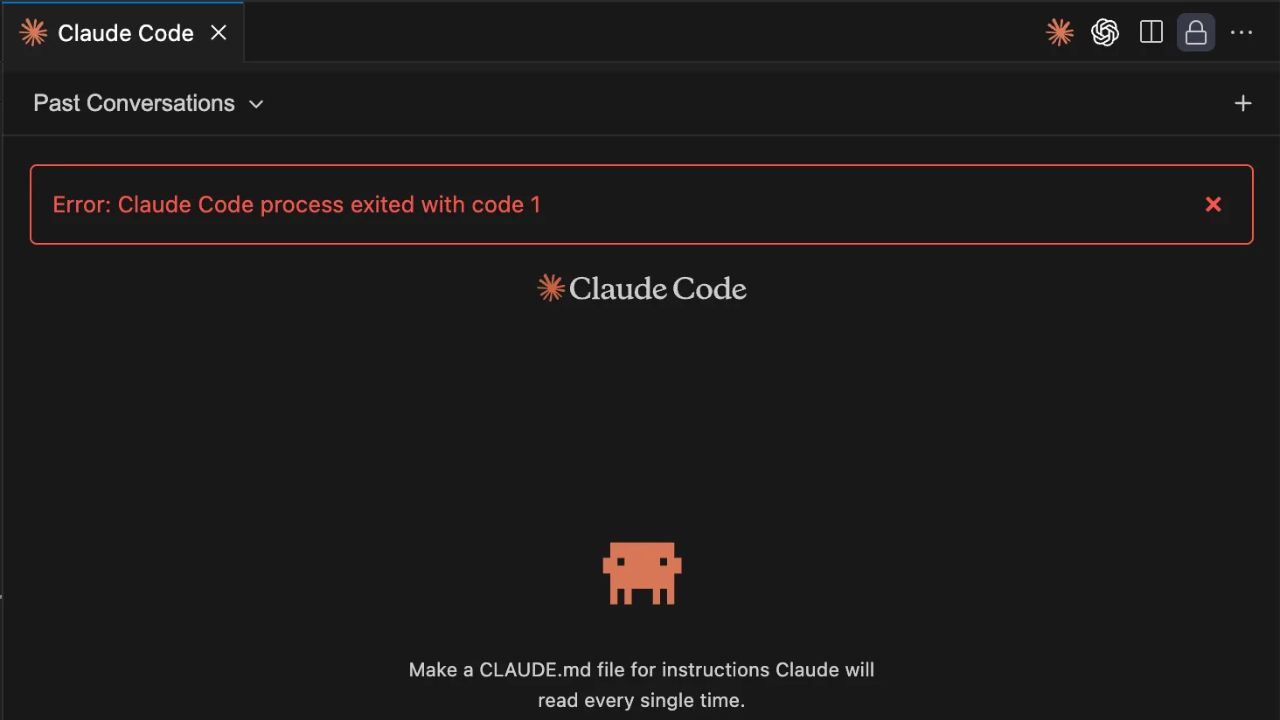
You open VS Code, click the Claude Code extension, and the panel just dies. No explanation, no You open VS Code, click the extension, and it just stops. No explanation, just “exited with code 1” staring back at you.
I’ve run into this more than once, and yeah, the first thought is always that you broke something. Turns out, that’s not always the case. This error has multiple causes, and Anthropic’s own GitHub issue tracker shows it’s bitten hundreds of users across multiple extension versions.
The annoying part is the error itself doesn’t really help. “Exit code 1” doesn’t point to anything specific it could be an auth issue, a broken session file, some environment variable getting in the way, or even something that changed after an update.
So you end up guessing.There isn’t just one fix either. It depends on what’s actually causing it, which is why it helps to go through the common ones first.
What “Exit Code 1” Actually Means
An exit code of 1 in any process indicates the program crashed with a general, unspecified error. It’s the computer equivalent of a shrug. When Claude Code throws this, it means the underlying Claude binary process started but terminated abnormally before it could hand control back to the VS Code extension.
What you see in the output panel usually looks like this:
Launching Claude on channel: [some channel ID] … Closing Claude on channel: [same channel ID] Error from Claude (on channel [ID]): Error: Claude Code process exited with code 1.
The gap between “launching” and “closing” is where the crash happens. Sometimes it’s a fraction of a second. That gap is your clue about what went wrong. A very fast crash almost always points to an authentication issue. A slightly slower crash, where you actually see some activity before it dies, often indicates a corrupted session file.
The Most Common Cause: Authentication Conflicts
When the error: claude code process exited with code 1 Comes From Auth
The auth issue is probably the most common cause behind this, and it started showing up a lot more after the VS Code extension update (around version 2.0.2, September 2025). Before that, things were simpler. After the update, Claude Code switched over to using claude.ai OAuth, and that’s where the friction began.
The problem usually shows up when there’s a mismatch. If you’ve got ANTHROPIC_API_KEY set as an environment variable either on your system or inside VS Code’s terminal, it can clash with the OAuth flow. The extension is trying to log in one way, while the environment variable is pointing somewhere else.
Instead of handling it properly, the process terminates before either method finishes.
I’ve seen people spend an hour re-entering API keys, reinstalling the extension, and removing config folders, all while the environment variable sitting in their shell profile quietly breaks everything each time. Check this first.
How to Fix the Auth Conflict
The fix has two parts. First, remove or unset ANTHROPIC_API_KEY from any environment where you launch VS Code:
- Open your shell profile (.bashrc, .zshrc, or PowerShell profile on Windows)
- Find and remove or comment out any line that sets ANTHROPIC_API_KEY
- Restart VS Code completely, not just reload, actually close and reopen it
Second, log out and back in to Claude Code using the claude.ai method, not the Console API key method. Open your terminal (outside VS Code) and run claude auth logout, then claude auth login. When the browser opens, sign in with your claude.ai account. Once that completes, reopen VS Code and try the extension again. [INTERNAL LINK: Claude Code authentication setup guide]
This alone resolves the issue for the majority of users who hit it after a version update.
The Crash Loop Problem: Corrupted Session Files
There’s another issue that started popping up in early 2026, especially if you were on Claude Code v2.1.71 with a bunch of MCP servers configured. To be honest, this one can be quite frustrating.
What’s happening is a bit of a loop. The VS Code extension tries to pick up where you left off and reload your last session automatically. That’s fine until that session file is broken. Maybe it didn’t save properly during a crash, or it just got too big.
Then it starts looping. The extension tries to open the last session, crashes, VS Code brings it back, and it just walks straight into the same problem again. Over and over.
I saw someone go through this way more times than they should have kept restarting VS Code, thinking it would fix itself. It didn’t. Every time it came back up, the same thing happened.
And the annoying part is, each crash wasn’t isolated. MCP servers would reconnect again, more API calls would fire, and eventually you’d start hitting rate limits on top of everything else.
It just piles up.
The session files live at ~/.claude/projects/<your-project-path>/ on macOS and Linux, or the equivalent under your user profile on Windows. They have .jsonl extensions and names that look like UUIDs.
Breaking the Crash Loop
The fix is to rename the corrupted file so Claude Code can’t find it on the next startup:
- Close VS Code completely
- Navigate to ~/.claude/projects/ and find the folder for your project
- Rename the .jsonl file, add .bak to the end, so you don’t lose it permanently
- Reopen VS Code
Claude Code will start a fresh session instead of trying to resume the broken one. If you have multiple project folders and aren’t sure which one is causing the problem, you can rename them all. You lose conversation history, but the extension starts working again.
A file size over 2MB is a warning sign. Session files that are that large tend to be unstable on startup. If yours is approaching that size, backing it up and starting fresh before it crashes is worth considering.
Platform-Specific Issues on Windows
Windows users are disproportionately represented in the GitHub issue reports for this error. There are a few Windows-specific things that compound the problem.
Git Bash Path and Shell Conflicts
Claude Code on Windows expects to find Git Bash for certain operations. If the path to bash.exe isn’t configured correctly, the process can fail to launch properly and exit with code 1. This is less common than the auth issue, but it occurs more often on fresh Windows installs or on machines where Git for Windows was installed in a non-default location.
The fix is to open Claude Code’s settings and set the CLAUDE_CODE_GIT_BASH_PATH variable to the full path of your bash.exe. Something like C:\Program Files\Git\bin\bash.exe. You can find the right path by running bash in a CMD window.
VS Code Terminal Environment Inheritance
On Windows, VS Code’s integrated terminal inherits environment variables from the shell it launches in. If you’ve set ANTHROPIC_API_KEY anywhere in System Environment Variables, in a .env file loaded by your shell profile, or even in a VS Code workspace settings file, it will propagate into the Claude Code process and trigger the auth conflict described earlier.
The fastest way to check: open a VS Code integrated terminal and run echo %ANTHROPIC_API_KEY% (CMD) or $env: ANTHROPIC_API_KEY (PowerShell). If it prints anything other than blank, that’s your problem.
A Quick Diagnostic Table
Here’s how to match symptoms to causes so you can skip straight to the right fix:
| Symptom | Most Likely Cause | First Fix to Try |
|---|---|---|
| Crashes immediately after auth succeeds | Auth method conflict or ANTHROPIC_API_KEY set | Unset env var, re-login with claude.ai OAuth |
| Extension loads then loops with loading text | Corrupted session file | Rename the .jsonl session file |
| Error appears after updating the extension | Version regression | Rollback or re-authenticate |
| Crashes only in VS Code, not terminal | VS Code shell environment issue | Check env variables in VS Code terminal |
| 429 rate limit errors alongside exit code 1 | Crash loop hammering the API | Fix session file first, then wait 10 min |
| Error on first install, Windows only | Git Bash path misconfigured | Set CLAUDE_CODE_GIT_BASH_PATH in settings |
What to Try When the Standard Fixes Don’t Work
If you’ve cleared the auth, removed the session file, and unset every environment variable, and it still crashes, the next step is a full clean reinstall, but done in the right order.
- Uninstall the Claude Code VS Code extension.
- Open a terminal and run claude auth logout.
- Delete the ~/.claude folder entirely (this removes all config, sessions, and settings). Back it up first if you care about any of it.
- Reinstall the extension from the VS Code marketplace.
- Run Claude in a terminal to trigger the fresh auth flow before opening VS Code.
- Once the terminal authentication succeeds, open VS Code
The key step most people miss is step 5. Authenticating through the terminal first establishes the credentials cleanly. When VS Code opens the extension afterward, it finds valid credentials already available, rather than creating them mid-launch.
If it still fails after all of that, run Claude Doctor in a terminal. It checks your setup for common misconfigurations and reports what it finds. The output usually points directly at whatever’s broken.
The Honest Summary
The error “Claude code process exited with code 1 ” has been frustrating many people because it appears to be a single error, but actually hides several completely different problems. An environment variable conflict looks identical to a corrupted session file from the outside. Both show the same exit code 1 in the same log line.
The fastest path to a fix: start with the auth conflict check (unset ANTHROPIC_API_KEY, re-login with claude.ai OAuth), then move to the session file rename if that doesn’t work, then do the clean reinstall as a last resort. Most people are back up and running after the first step.
If this is a fresh install that never worked at all, jump straight to Claude. Doctor, it was designed exactly for this situation, and saves a lot of guessing.
Frequently Asked Questions
Why does this error appear even after I successfully log in?
The login appearing to succeed is the confusing part. What’s actually happening is that the authentication UI completes its flow, the browser opens, you sign in, the browser confirms, but the credentials aren’t stored in a format the VS Code extension can use. This usually means there’s an ANTHROPIC_API_KEY environment variable set somewhere that’s overriding the OAuth credentials. What’s usually happening here is it picks up the stored API key, runs into an auth conflict, and then just exits with code 1 before you see anything useful.
The fix is pretty simple once you know what’s going on. Clear out the variable, run claude auth logout in your terminal, and then log in again from scratch. After that, things line up properly, the credentials match what the extension expects, and it should start normally.
Does this error only happen on Windows?
Not exclusively, but Windows users are significantly more affected. Looking at the GitHub issue reports, the majority of confirmed reproductions are on Windows, particularly with VS Code’s integrated terminal. The reasons are mostly about how Windows handles environment variables (they are inherited differently than on macOS or Linux) and how Claude Code expects to find Git Bash. macOS and Linux users do hit this error, but usually only when the ANTHROPIC_API_KEY environment variable is set in their shell profile or when they have a corrupted session file. The corrupted session file issue affects all platforms equally, as it’s a bug in how Claude Code handles session resumption, not an OS-specific issue.
Can I use Claude Code in the terminal while I wait for the VS Code extension to work?
Yes, and honestly, it’s a good idea to do this anyway. If the extension isn’t working, open any terminal (it doesn’t have to be VS Code’s integrated terminal), navigate to your project directory, and just type claude. The terminal version and the VS Code extension share the same authentication and the same underlying binary, so if one works, you know the binary itself is fine. The issue is specific to the VS Code extension. Working in the terminal while you troubleshoot also lets you use Claude Doctor and Claude Auth Status to get real diagnostic information that the extension UI hides from you.