
Most developers I know have lived through this exact moment: you’ve built a solid UI in Claude Code, it looks right in the browser, and then someone on the design team asks, “Can we see this in Figma?” And suddenly you’re taking screenshots, uploading them, explaining context that should already be obvious. That round trip is exhausting.
The Claude code Figma MCP connection fixes that. Through the Figma MCP server, Claude Code can talk directly to Figma, pulling design context into your coding environment or pushing captured screens from your browser straight onto the Figma canvas. The bridge runs both ways, which is the part most people don’t realize when they first hear about it.
What makes this worth paying attention to is how naturally it fits into an existing workflow. It doesn’t replace how you work; you’re just adding a connection that brings your code and design a bit closer together.
If you’re already using Claude Code for development, connecting Figma to it only takes a few minutes.
[IMAGE: figma mcp claude code server connection showing Claude Code linked to a Figma canvas with editable design frames]
What the figma mcp claude code connection actually does
The core idea is straightforward. The Figma MCP server is an official integration that lets LLM-based tools like Claude Code access Figma design data. When you connect it, Claude Code can reference actual Figma frames when generating or editing code. Instead of describing what a component should look like, you point Claude Code to the Figma file, and it reads the design directly.
It works the other way too, and that’s just as useful. If you’ve built a UI with Claude Code; maybe a prototype running locally or on staging; you can grab a screen and drop it into Figma as an editable frame.
It shows up on the canvas with the structure still there, so you can annotate it, compare changes, or share it with teammates. They don’t have to run anything locally just to look or to give feedback.
I find this particularly valuable at the point in a project where one person is holding all the context. Code-first exploration is fast and solo by nature. The moment you need someone else’s input, you either take screenshots or ask them to pull your branch. The Figma connection skips both of those options and creates a shared artifact that both designers and developers can work from.
How claude code figma mcp install works in practice
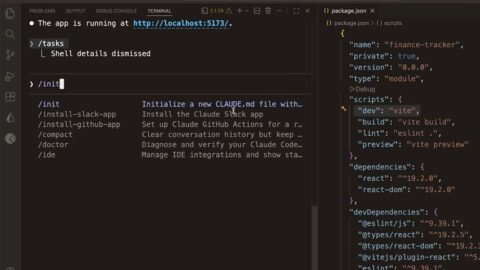
Before anything else, you need Claude Code installed and working. If you haven’t done that yet, the setup covers macOS, Linux, Windows, and WSL. Once Claude Code is running, connecting the Figma MCP server is a single command using the claude mcp add pattern you’d use for any MCP server.
Figma offers its MCP server over HTTP, which is the recommended transport for cloud-based services. You point Claude Code at the Figma MCP endpoint, authenticate through OAuth, and the connection is live. From that point on, Claude Code can reference Figma frames directly using a link and a prompt.
One thing worth knowing upfront: you need a Figma account with the appropriate access level. Free plans have limitations depending on which Figma features the MCP server needs to access. Teams and Professional plans generally cover what’s needed for the full feature set. Check your Figma plan before spending time on setup so you don’t hit an access wall mid-workflow.
The Claude code Figma MCP install process uses the same scope options as any other MCP server. If you’re setting this up for personal use across projects, user scope makes sense. If the whole team needs the Figma connection, project scope with a .mcp.json file committed to the repo means everyone gets it automatically when they pull the project.
[IMAGE: figma mcp claude code install command in a terminal with Figma OAuth authentication prompt]
[INTERNAL LINK: understanding Claude Code MCP config scopes for teams and individuals]
The two directions this workflow runs
Most people think about the Figma MCP connection as one thing. It’s actually two distinct workflows, and they solve different problems.
Code to Figma is the capture workflow. You have a live UI running in a browser, whether that’s localhost, staging, or production, and you want to get it onto the Figma canvas as an editable frame. Claude Code captures the screen and pushes it to Figma, where it becomes a real frame you can annotate, duplicate, and rearrange. Multi-screen flows are supported, too, so you can capture a whole sequence and preserve the order.
Figma to Code runs in the opposite direction. You paste a Figma frame link into Claude Code, and it reads the design data to inform the code it generates. This is where the Figma Remote MCP connection earns its keep. Instead of a developer interpreting a design file, manually checking spacing, colors, and component names, Claude Code does that directly from the source.
Both directions reduce the same underlying problem: context loss during handoff. Whether you’re moving from design to code or from code back to design, something always gets lost in translation when the tools don’t talk to each other. This connection doesn’t eliminate all friction, but it removes the specific pain of maintaining two separate, disconnected records of the same interface.
Understanding Figma Remote MCP and Figma Console MCP
There are two ways Figma exposes MCP capabilities, and they’re suited to different situations.
Figma Remote MCP is the cloud-based connection. This is what most developers use when connecting Claude Code to Figma. It runs over HTTP, requires OAuth authentication, and connects Claude Code to your actual Figma account and files in the cloud. Setup is clean, authentication is handled through the browser, and once it’s working, you don’t need to think about it again.
Figma Console MCP is a local option. It runs on your machine and is typically used in enterprise or controlled environments where cloud connectivity is restricted, or when you need local-only access to Figma resources. It’s less commonly discussed in general setup guides because most individual developers and small teams go the remote route.
| Connection type | Where it runs | Best for | Authentication |
|---|---|---|---|
| Figma Remote MCP | Cloud (HTTP) | Individual developers, most teams | OAuth 2.0 via browser |
| Figma Console MCP | Local machine | Enterprise, restricted environments | Local credentials |
If you’re not sure which one applies to you, start with Figma Remote MCP. It’s the one Figma recommends for most use cases and the one with the most community support if something goes wrong during setup.
What this actually changes about how teams work
The honest answer is: it changes the conversation more than it changes the tools.
When a UI built in Claude Code can land directly on the Figma canvas, the design feedback loop tightens. A designer doesn’t need to run a dev environment to see what’s been built. A PM doesn’t need someone to walk them through a prototype; they can annotate it directly in Figma alongside other design work. That’s a different kind of collaboration than what most teams are used to.
I don’t think the frame-comparison use case gets enough attention. When you capture different versions of a UI, say two navigation approaches, and place them side by side in Figma, it becomes much easier to actually compare them and talk through what works., it creates something you can actually share and discuss outside your local setup. The team can react to both options at once, with the full context of how they were built, without anyone needing to context switch into a development environment.
The round-trip from code to canvas and back is where the full value shows up. You build in Claude Code. You capture to Figma. The team annotates and explores alternatives. You take a Figma frame link back into Claude Code and generate the refined implementation. That’s a workflow loop that used to require a lot of manual handoffs and now requires almost none.
Setting up figma mcp for your team
Individual setup is relatively quick. Team setup needs a little more planning, but the payoff is worth it.
For teams, the easiest way to handle this is with a project-level MCP setup. You add the Figma MCP server to your .mcp.json, commit it, and anyone pulling the repo already has the connection in place.
Everyone still signs in with their own Figma account through OAuth, but the setup itself is shared, so you’re not repeating the same steps for each person.
One thing that’s worth doing don’t hardcode any credentials in your .mcp.json. It’s better to use environment variables instead. That way the config is safe to commit, and everyone can plug in their own values locally without revealing anything sensitive. It’s the same pattern recommended for any sensitive MCP configuration.
For the capture-to-Figma workflow, it helps to decide early where those screenshots should go. You can either send everything into a shared team file or keep them in individual files.
A shared file gives you one place to track how the UI evolves over time. Individual files are easier to manage day to day, but comparing changes later isn’t a straightforward approach.
What’s worked better for me with team rollouts is starting small get one developer set up and working, write down exactly what they did, and then roll that out to everyone else.
MCP auth can behave a bit differently depending on the account or Figma plan, so it’s a lot easier to sort things out with one setup first instead of trying to fix multiple at the same time.
My take on figma mcp after using it across real projects
The thing that surprised me most about Figma MCP wasn’t the technical capability; it was how much it changed the pace of early-stage feedback. Before this, getting non-technical stakeholders to react to a UI meant either a live demo, a recording, or a screenshot. None of those let the other person actually touch the design.
A captured frame on the Figma canvas is something a designer can immediately annotate, restructure, and react to. That’s a different kind of engagement than watching a screen recording. And when you pair that with the ability to pull a Figma frame back into Claude Code for implementation, you get a loop that keeps moving instead of stalling at the handoff.
Start with one workflow direction first. Either set up the Figma-to-code direction and use it to generate design-informed code, or set up the code-to-Figma capture and get a feel for how frames land on the canvas. Do one well before you try to do both at once. Once both directions feel natural, the handoff friction that was always just part of the job starts to feel like something you’ve actually solved.
Frequently Asked Questions
Do I need a paid Figma plan to use figma mcp claude code?
It depends on what you’re trying to do. The Figma MCP server connects to your Figma account, and the features it can access depend on your plan. For basic frame access and design, reading the kind that informs Claude Code code generation, a Free plan may work with some limitations. For the full capture-to-Figma workflow and team collaboration features, you’ll usually need at least a Professional or Team plan. It’s worth checking Figma’s current plan details before setting things up, since limits can change.
It saves you from going through the whole setup only to realize the feature you need isn’t included. If you’re on a team, your organization likely already has the right plan in place. Check with whoever manages your Figma workspace first.
What is Figma Remote MCP and how does it differ from a local setup?
Figma Remote MCP is the cloud-based version of the Figma MCP server connection. It runs over HTTP, and you authenticate using OAuth through your browser, meaning Figma verifies your account, you grant access, and Claude Code can then read and interact with your Figma files in the cloud. It’s the setup most individual developers and teams use.
The alternative is Figma Console MCP, which runs locally on your machine. That setup mostly comes up in enterprise environments; places where network restrictions make cloud connections difficult, or where everything has to stay local for policy reasons.
For most people, though, Remote MCP is the better option. It’s easier to set up, easier to maintain, and the documentation around it is a lot more straightforward. If you’re in an enterprise environment with strict network controls, check with your IT or security team before deciding which option fits.