

I’ve been testing a lot of AI tools lately, and most of them demand your full attention the whole time. You prompt, you wait, you respond, you wait again. It’s a loop that keeps you attached to the screen. Claude Code Dispatch breaks that loop entirely.
Dispatch is Anthropic’s newest addition to its Cowork environment. The idea is simple but surprisingly useful. The idea itself is pretty straightforward, but honestly, it’s way more useful than it sounds.
You send a task to Claude from wherever you are. everything’s picked up, runs everything quietly in the background, by the time you come back… It’s already done. No hovering. No constant checking.
It feels less like “running code” and more like handing something off and trusting it’ll be handled.
This guide covers what Claude Code Dispatch is, how it works behind the scenes without overcomplicating things, and how to set it up cleanly so you don’t run into issues halfway through. We’ll also look at where it genuinely adds value in day-to-day work.
It might not seem like a big deal at first, but once you start using it in the right situation, you’ll notice how much time it quietly saves.
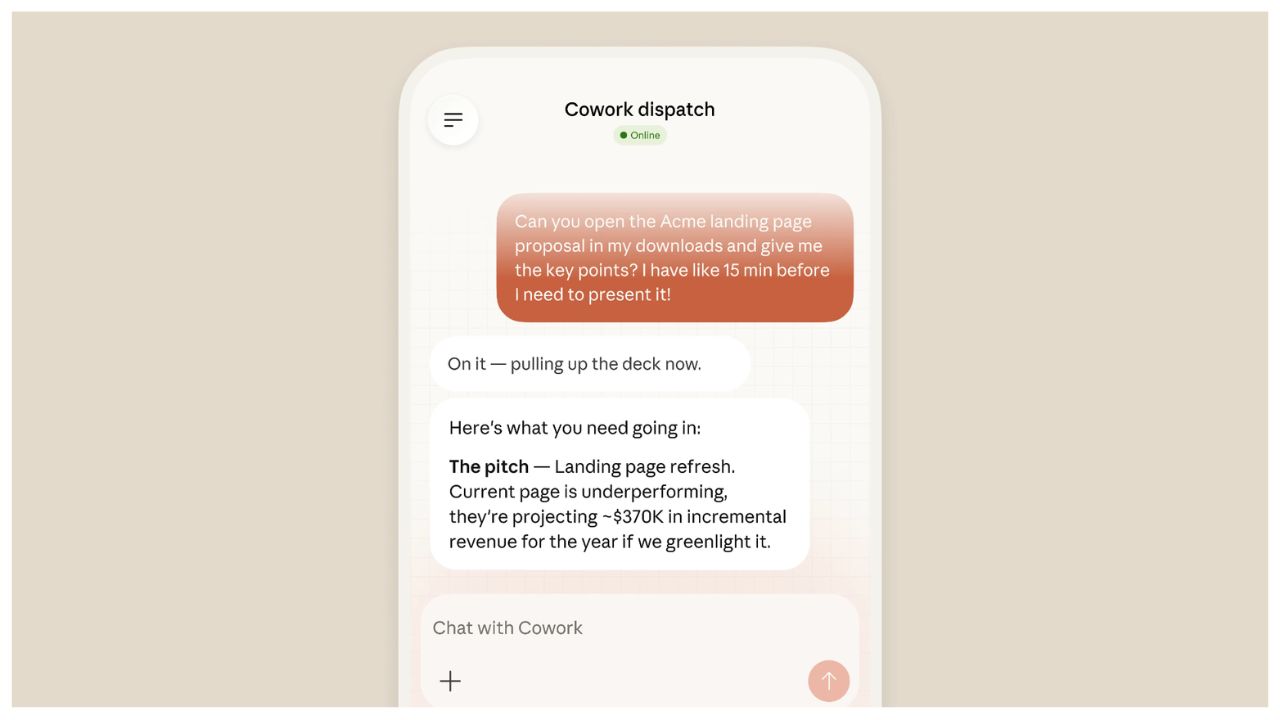
[IMAGE: Claude Code Dispatch interface on desktop and mobile showing cross-device task assignment with the claude code dispatch workflow]
What Is Claude Code Dispatch and Why It Changes How You Work
Most AI interactions are synchronous. You’re present, Claude responds, and nothing happens when you’re not. Dispatch flips that model.
With Claude code dispatch, you assign tasks through a persistent conversation thread that lives across both your desktop and mobile devices. You fire off a task from your phone or desktop, and Claude handles execution locally. By the time you sit back down, the output will be ready. A finished spreadsheet summary. A briefing pulled from your emails, your formatted document built from files in your Google Drive.
The keyword there is locally. Claude doesn’t run your tasks on some remote cloud machine. It uses your actual desktop features, your installed connectors, and your configuration. That’s what makes it “real “critical for real work rather than just demos.
Dispatch is currently rolling out to Max plan subscribers first, with Pro users following. It’s part of the broader Cowork preview Anthropic launched in early 2026. You’re on the right plan; you can start using it today.
How Claude Code Dispatch Works Behind the Scenes
The architecture here is worth understanding because it explains both the feature’s power and its limits.
When you set up Dispatch, you’re basically telling Claude to stay ready on your desktop. The conversation itself syncs across your devices, but the actual work still runs locally on your machine.
So your system needs to stay on and connected while a task is running. If your laptop goes to sleep midway, nothing gets lost. The context is still there, but the task just pauses until everything’s back online. Context persistence is one of the genuinely useful parts. You have a standard Claude session that forgets everything once you close it. Dispatch maintains continuity; you can follow up on a task you started yesterday without having to re-explain the context. Claude keeps track.
The Role of Your Desktop in Claude Code Dispatch Tasks
Your desktop does the heavy lifting, not the cloud. Claude accesses files on your machine, reads from local spreadsheets, connects to apps you’ve set up in Cowork, and writes results back to the folders you’ve specified.
The mobile interface acts as your control panel, a simple way to send instructions when you’re away from your desk.
This design means Dispatch tasks run with the same permissions and file access as if you were sitting at the keyboard. That’s powerful when you want Claude actually to touch your local environment. It also means you should be deliberate about what folders and connectors you grant access to during setup.
Setting Up Claude Code Dispatch Step by Step
Setup takes a few minutes and you only do it once. Here’s how to get it running from scratch.
- Install the latest version of the Claude desktop app on your computer (macOS or Windows)
- Install the Claude mobile app on your phone (iOS or Android)
- Make sure both apps are updated and signed into the same account
- Open the Claude desktop app and navigate to the Cowork section
- Find the Dispatch panel in the Cowork sidebar
- Follow the guided setup to grant Claude access to local files and relevant connectors
- Complete the setup flow, your desktop is now ready to receive and run dispatched tasks
Complete the setup flow. Your desktop is now ready to receive and run dispatched tasks. That’s the full path. Once setup is done, open the Claude app on your phone, go to Dispatch, and start assigning tasks. They’ll run on your desktop, and you’ll see results when you check back.
[IMAGE: Step-by-step Claude Code Dispatch setup in the Cowork side panel showing the dispatch configuration screen]
Claude Code Dispatch Requirements Before You Start
Don’t skip the requirements check, a few things will silently block you if they’re not in place.
| Requirement | Details |
|---|---|
| Plan | Max (currently), Pro (rolling out) |
| Desktop App | Claude desktop — latest version |
| Mobile App | Claude iOS or Android — latest version |
| Desktop State | Must stay powered on and online during tasks |
| Account | Same claude.ai account on both devices |
| Cowork Access | Must be enrolled in Cowork preview |
The desktop requirement catches people off guard. If you dispatch a task and your laptop sleeps for an hour later, Claude pauses. It resumes when the machine wakes, but if you’re expecting results by morning, keep the machine awake. A simple power setting change solves this.
What You Can Actually Do With Claude Code Dispatch
The use cases are grounded and practical. I’ve found it most useful for tasks that aren’t urgent but still take a chunk of time when you sit down to do them manually.
Summarising data from local spreadsheets. Point Dispatch to a folder, ask for a weekly report summary, and return a formatted document. No opening Excel, no manual copy-pasting.
Email and Slack briefing notes. With the right connectors configured in Cowork, you can ask Claude to search through your inbox or Slack channels, pull relevant messages, and write a report. I use this before morning catch-ups; it doesn’t take up much time.
Building presentations from cloud files. If you have files in Google Drive, Dispatch can pull them as a formatted slide deck or document. You describe the structure, Claude assembles it.
File organization and batch processing. Ask it to rename files, move them to folders, or process a batch of documents according to a pattern. These are the repetitive tasks that always get pushed to the back burner. Dispatch handles them while you’re doing something else.
What Dispatch doesn’t do is replace real-time, back-and-forth collaboration. For that, you still want an active Claude session when you’re in the loop. You’re best when the task is clear enough to hand off completely.
Claude Code Dispatch vs Remote Control: Knowing the Difference
Anthropic also offers a feature called Remote Control, which doesn’t confuse it with the other. They solve different problems.
Remote Control (claude –remote-control) lets you continue an active, interactive Claude Code session from another device. You start working on something at your desk, then pick up the same session on your phone mid-conversation. You’re still present in the loop, just on a different screen.
Claude’s code dispatch is for tasks you don’t want to babysit. You assign the task, your machine runs it, and you get a result. You don’t stay, you’re not in the conversation.
Think of Remote Control as a way to move your workspace between devices. Think of Dispatch as a way to delegate work to your desktop while you step away entirely. Both are useful, but for different moments in your workflow.
Getting the Most Out of Claude Code Dispatch
A few things I’ve learned from using this in practice.
Write specific task descriptions. Vague prompts produce vague results, especially when you’re not there to course-correct. Instead of “summarise my emails,” try “summarise emails from the last 48 hours that mention the Henderson project and flag any action items.” Claude works better with a clear scope.
Set up your connectors before you dispatch anything. If a task depends on Slack, Google Drive, or a specific folder, configure that access during Cowork setup, not in the middle of a task. Claude can’t request new permissions while you’re away.
Also, take a moment to review the output before acting on it. Dispatch is powerful, but not perfect. I treat everything it returns as a first draft.. A quick read-through before sending or using something is still worth it.
The real shift with Claude’s code dispatch isn’t about any single task. It’s about how you think about your workday. When you can delegate a research task, a summarisation job, or a file cleanup to run while you’re in a meeting or out for lunch, the list of “I’ll do that later” items gets shorter faster.
That’s the honest case for Dispatch. It doesn’t do everything. But for clearly defined, time-consuming tasks that don’t need you watching every step, it does them while you’re elsewhere, and that’s worth quite a bit.
Frequently Asked Questions
What is Claude Code Dispatch and how is it different from regular Claude?
Regular Claude sessions are synchronous; you’re present, it responds, and the session ends when you close it. Claude Code Dispatch is an asynchronous task system built inside Anthropic’s Cowork environment. You assign a task from your phone or any device, your desktop, and Claude runs it locally, and you return to completed results.
The conversation thread also persists across sessions, so Claude retains context from previous tasks. It’s closer to delegating work to a background process than having a back-and-forth conversation. The main practical difference is that you don’t have to be at your desk or even at your computer for the work to happen.
What plans support Claude Code Dispatch right now?
As of March 2026, Claude Code Dispatch is rolling out to Max plan users first. Pro users are expected to follow, although there’s no confirmed timeline yet. If you’re on the free plan, it’s not available at the moment.
You’ll also need access to the Cowork preview Anthropic’s setup for more persistent, collaborative AI workflows before you can use it.. You’re on Max and don’t see the Dispatch option in your Cowork sidebar. Make sure both your desktop and mobile apps are fully updated, since the feature requires the latest app versions on both devices.
Does my computer need to stay on for Claude Dispatch to work?
This is probably the most common issue people run into. Claude Code Dispatch runs locally on your desktop, so your machine must stay on and connected to the internet while the task is running.
If your system goes to sleep, shuts down, or drops the connection, tado doesn’t fail; it just pauses and waits. Once everything’s back online, it continues from where it left off.
Quick fix: turn off sleep while plugged in, especially for longer runs. With that in place, even overnight tasks are completed reliably.